


For best speed and consistency, pair OrbitDock Pro with an original 45W power adapter—especially when charging all three devices at once.
187
Reviews
OrbitDock Pro
OrbitDock Pro
Translation missing: en.products.product.price.regular_price
$0.00
Translation missing: en.products.product.price.regular_price
Translation missing: en.products.product.price.sale_price
$0.00
Translation missing: en.products.product.price.unit_price
Translation missing: en.accessibility.unit_price_separator
Translation missing: en.products.product.shipping_policy_html



4.8/5 from desk-setup lovers who hate cable clutter
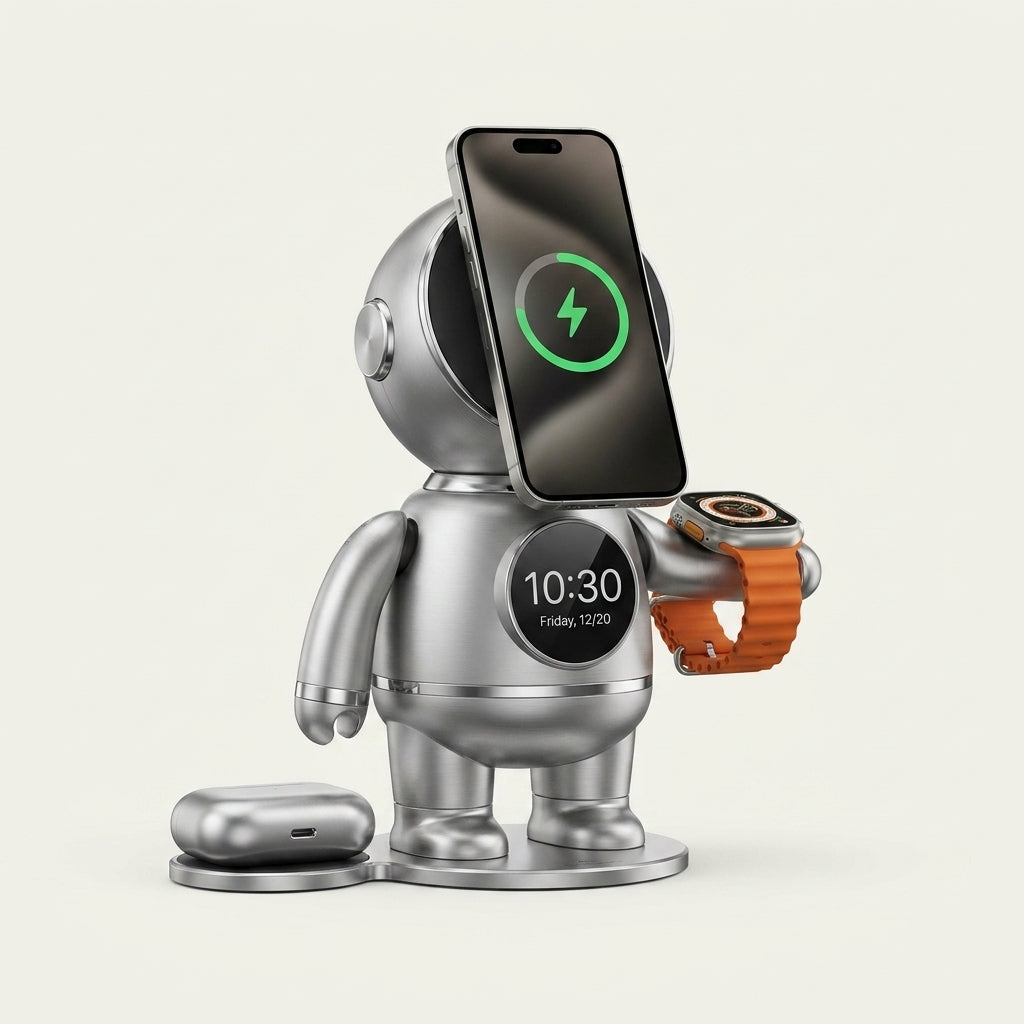
Meet OrbitDock Pro—the all-in-one charging hub that turns your nightstand or desk into a clean, premium command center. Power your phone, smartwatch, and earbuds at the same time while a bright, easy-to-read clock keeps you on schedule. Add your favorite photos and stream music on demand—so your space feels personal, not messy.
Charge 3 at once
Photo-ready display
Built-in speaker

One dock replaces your daily cable pile
Phone, watch, and earbuds charge together—cleanly.

Wake up on time, not to low battery
Reliable alarm clock with 12/24-hour formats.

Make your setup feel like yours
Load photos via TF card in minutes.
Fast, stable charging when you use the right power
Music anywhere with Bluetooth speaker mode
Connect via Bluetooth “OXYGEAR” and enjoy wire-free sound with the speaker’s built-in rechargeable battery for 3+ hours of playtime.


A smarter dock that upgrades your whole routine
OrbitDock Pro is built for people who want fast charging, cleaner spaces, and fewer morning headaches.
Charge three devices—at the same time
Power phone, smartwatch, and earbuds in one spot.

Clock + alarm you’ll actually use
Quick controls with 12/24-hour format switching.


Your photos, on display every day
Use the included TF card to add 250–300 photos.

Instant music for work, wind-down, or weekends
Bluetooth “OXYGEAR” pairing for easy wireless playback.
3
Devices charged at once—no extra bricks needed.
45W
Recommended adapter power for fast, stable charging.
250–300
Photos supported on the included TF card.
3+ hrs
Wireless playback with the speaker’s built-in battery.
Why OrbitDock Pro becomes the one thing you never unplug
Designed to simplify charging and elevate your setup.
Get OrbitDock ProLimited stock due to high demand for all-in-one docks.
OrbitDock Pro vs. ordinary charging stands
Most docks only charge. OrbitDock Pro upgrades your space with time, sound, and personalization—without adding clutter.
| All-in-one | Personalized | Audio | Reliable | Simple | |
|---|---|---|---|---|---|
Your Brand |
|||||
OTHER BRANDS |
Your Brand |
OTHER BRANDS |
|
|---|---|---|
| All-in-one | ||
| Personalized | ||
| Audio | ||
| Reliable | ||
| Simple |

From messy cables to a premium, organized charging zone
OrbitDock Pro keeps your essentials powered, your schedule visible, and your space looking intentional. It’s the easiest upgrade you’ll feel every morning and every night.
Top Pick
Upgrade your setup—without the risk
Built to simplify your routine from day one.
Clean desk feel
Fast daily charging
Easy photo loading
Wireless music mode
Add To Cart
For best results, use an original 45W power adapter.
FAQs
Everything you need to know before you plug in
Quick answers for a confident checkout.
Can I charge my phone, smartwatch, and earbuds at the same time?
Yes—OrbitDock Pro is made for simultaneous 3-device charging. For fast, stable performance, we recommend using an original 45W power adapter.
How do I connect the Bluetooth speaker?
Open Bluetooth on your device and select “OXYGEAR.” The speaker has a built-in rechargeable battery for 3+ hours of wireless playback.
Does it support both 12-hour and 24-hour time formats?
Yes, you can switch between 12-hour and 24-hour formats anytime in settings.
How do I add my own photos to the display?
Use the included TF card—insert it into your PC and drag in your photos. For maximum space, delete the pre-loaded photos first.
How do I set the alarm clock on OrbitDock Pro?
Touch the “Alarm” button, adjust with the [+]/[-] keys, then choose days (Mon–Sun) and a ringtone. Once selected, your alarm is active.